 Enu
EnuGoogle Flights Price Graph is one of the quickest ways to spot cheaper days to fly, compare prices across nearby dates, and avoid booking at the wrong moment. Used well, it helps you decide when to buy and when to keep watching.
Prices change fast, and the graph is only as useful as the search you feed it. Always confirm prices and policies on the official site.
Quick Answer (Read This First)
- Start with a normal search, then open Price graph to scan cheaper date bands fast.
- Use flexible dates when you can, rigid dates hide better options.
- Treat the graph like a decision tool, not a promise, it reflects recent pricing patterns.
- Re-check filters (stops, airlines, bags), because the graph responds to those choices.
- Compare one-way vs round-trip views, they can show very different lows.
- Pair the graph with price tracking so you don’t miss a drop while you’re busy.
- Don’t chase the single lowest bar, aim for consistently low ranges you can actually book.
What Is Google Flights and What Does It Do?
Google Flights is a flight search tool that pulls fares from airlines and travel sellers, then lets you compare routes, dates, and flight options quickly. It’s built for discovery and comparison, not for guessing the future.
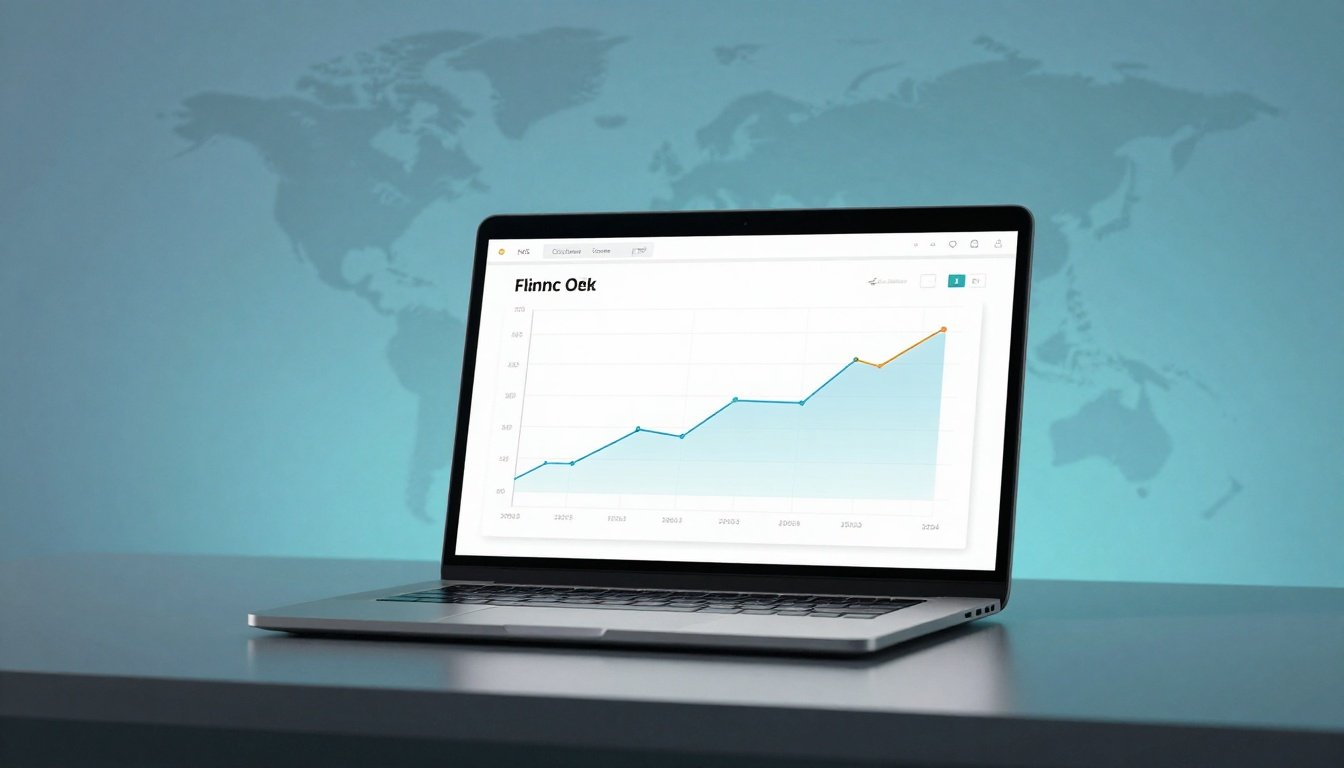
Google Flights Price Graph is part of that toolkit. It visualizes how fares vary by date so you can spot cheaper travel windows without clicking through a dozen calendars.
It also supports alerts. If you’re not ready to buy, price tracking can email you when the price changes on the route and dates you care about.
For a broader overview of the platform’s features, see The Points Guy’s Google Flights guide.
Key Features of Google Flights Price Graph
- Shows price patterns across a range of dates, so you can compare day-to-day swings.
- Highlights your selected dates so you can see if you’re sitting on a pricey spot.
- Works best with filters (stops, times, airlines), so you’re comparing the right product.
- Pairs well with Date grid for people who prefer a table view of date combos.
- Supports quick scanning for weekend spikes vs midweek dips.
- Helps you sanity-check whether “cheap” is actually cheap for that route right now.
Step-by-Step: How to Use Google Flights
- Open Google Flights and enter your origin and destination.
- Choose trip type (round-trip or one-way) and enter dates if you have them.
- Click Search, then look for Price graph on the results tools row.
- Open Google Flights Price Graph and scan across the date range shown.
- Adjust dates by clicking lower-price points, then re-check the flight list that loads.
- Tighten filters (stops, times, airlines), then re-open the graph to confirm the “deal” still exists.
- Toggle price tracking if you’re not booking today, so you get alerts on changes.
- Click through to the airline or seller and confirm the live total before paying.
Before you pay (mini checklist):
- Confirm the total price includes the basics you need (bags, seats, payment method).
- Confirm change and cancellation rules for that fare type.
- Confirm who issues the ticket (airline vs third-party seller).
- Re-check the same itinerary once more, prices can refresh mid-session.
Pricing, Fees, and What “Cheap” Really Means
The graph typically reflects the base fare you can book for that search setup. “Cheap” on the chart can still become expensive once you add the things real trips need, like a carry-on, a checked bag, seats together, or a changeable fare.
Also, “cheap” can mean “cheap for that route” rather than “cheap in general.” That’s why the smartest use of Google Flights Price Graph is comparing nearby dates and validating the full checkout total.
Example calculation (example only): a $240 round-trip fare + $70 checked bag each way ($140) + $25 seat each way ($50) = $430 total. The graph may have helped you find the $240, but the trip cost is what hits your card.
Pros and Cons
| Pros | Cons |
|---|---|
| Fast way to compare many dates | Doesn’t guarantee future price movement |
| Helps spot day-of-week price patterns | Can mislead if filters aren’t set right |
| Works well with flexible planning | Base fare focus can hide add-on costs |
| Easy to pair with alerts | Some “deals” disappear when you click through |
| Great for scanning alternate dates | Not every airline or fare is always shown |
Common Mistakes (and How to Avoid Them)
- Searching with rigid dates only. Fix: use flexible dates when possible, then use the valleys in Google Flights Price Graph to pick the best days.
- Trusting the graph without checking the live flight list. Fix: click the date, then verify real itineraries and rules.
- Forgetting filters change the story. Fix: set stops, times, and airlines first, then read the graph again.
- Assuming a flat-looking trend means prices are stable. Fix: refresh and compare multiple date ranges; small swings matter.
- Chasing the single lowest bar. Fix: focus on bookable low ranges, not one isolated outlier.
- Only checking round-trip. Fix: compare one-way pricing too, especially on routes where carriers price legs differently.
- Ignoring trip length effects. Fix: switch to Date grid to see how 4-day vs 7-day trips change totals.
- Not turning on alerts. Fix: use price tracking once you’ve found a target range.
- Booking before confirming total cost. Fix: add bags and seats mentally, then decide if it’s still a deal.
Is Google Flights Price Graph Legit and Safe?
Google Flights Price Graph is a legit feature inside Google Flights, and it’s safe to use for research and comparison. It doesn’t sell you a ticket by itself, it sends you to an airline or a travel seller to complete purchase.
To stay safe, check three things before you pay: who issues the ticket, what support channel you’ll use if plans change, and the fare rules for refunds, credits, and cancellations. If you book via a third party, confirm their customer service path and the exact refund policy in writing.
Tips to Get Better Deals
- Open Google Flights Price Graph first, then decide dates, not the other way around.
- Check nearby airports when it makes sense, then compare graphs across routes.
- Re-run the graph after changing filters, don’t assume the low price still applies.
- Use midweek departures as a baseline, weekends often price higher.
- If your dates are fixed, use the graph to pick the cheapest departure time window.
- Turn on price tracking early, not the day you want to book.
- Track more than one option (nonstop and 1-stop), then decide based on real savings.
- Re-check the graph at different times of day, then validate with the live fare.
- After you book a refundable fare, keep watching in case a drop makes a rebook worth it.
FAQs
Can Google Flights Price Graph predict future prices?
It can suggest patterns based on recent and historical pricing, but it can’t promise what happens next. Use it to guide decisions, then confirm the live price.
Why did the price change when I clicked?
Inventory can sell out, and prices refresh often. Re-run the same search and confirm filters, then compare the new live options.
Does the Price graph include bag fees?
Usually it reflects the fare shown in search, not every add-on. Always check baggage, seat fees, and change fees before paying.
Is it better to book direct or through a third party?
Direct booking often makes changes and support simpler. If you choose a third party, confirm ticket issuer and customer support details first.
How do I set up alerts correctly?
Turn on price tracking after you’ve set your key filters. Alerts match your setup, so wrong filters can mean wrong alerts.
What if the graph shows a low price but I can’t find that fare?
That fare may have expired or applied to a different itinerary. Change dates slightly, refresh, and confirm the same filters are active.
Is Google Flights Price Graph useful for last-minute trips?
Yes, it can still show cheaper pockets across near-term dates, but availability changes quickly. Confirm the live fare immediately.
Do flexible dates really matter?
Yes. Even shifting by a day or two can expose a lower band on Google Flights Price Graph, especially around weekends and busy periods.
Conclusion
Google Flights Price Graph works best when it’s treated like a comparison tool, not a forecast you can rely on. Set your filters, scan the graph for low bands, then confirm the live itinerary and total cost.
If you don’t want to babysit prices, pair Google Flights Price Graph with price tracking, and act when the price drops into a range you’d actually be happy paying.


 Enu
Enu