
 Enu
EnuSoftware for immigration lawyers can feel like the difference between a calm day and a mess of missed deadlines, form errors, client back-and-forth, and files spread across email, drives, and paper. When every case has tight timelines and high stakes, your tools either reduce risk or add to it.
This guide gives you a clear, practical way to pick the right platform in 2025, based on how immigration work actually runs. You’ll see the must-have features, real buying steps you can follow, a short comparison list (Docketwise, INSZoom, Clio plus add-ons, and AI drafting helpers like DraftyAI and VisaLaw.ai), plus a simple cost calculator framework you can use before you book demos.
Important disclaimer: This is educational content, not legal advice. Pricing, features, integrations, and security terms change, and USCIS forms and requirements can update without much warning, so confirm current details with each vendor and verify your USCIS workflow before you switch systems.

Software for immigration lawyers: what it should do for you (not just what it claims)
Software for immigration lawyers should behave like a disciplined paralegal that never forgets, never duplicates work, and always keeps receipts. Marketing pages love big promises, but your daily reality is simple: you need fewer preventable errors, fewer deadline scares, and fewer client status calls that eat your day.
The fastest way to judge any platform is to ignore the feature list and focus on outcomes. Can it carry clean data from intake to filing, keep your whole team aligned on deadlines, and give clients a secure place to cooperate without chaos? These three capabilities separate a tool you trust from one you tolerate.
Form automation that reduces mistakes on USCIS and visa forms
Immigration work punishes tiny errors. A swapped digit in a passport number, a missing apartment letter, or a name that changes between forms can cause delays, RFEs, and client stress. Strong form automation cuts that risk by treating your intake as the single source of truth, then reusing it everywhere.
Here’s what “real” automation looks like in practice:
- One intake, many outputs: You collect answers once, then the software pushes that data into USCIS forms, cover letters, employer support letters, exhibit lists, and filing packets. This prevents retyping, and it also prevents silent drift in facts over time.
- Field mapping that respects immigration nuance: It should handle multiple names (maiden name, aliases), multiple addresses with dates, multiple entries and exits, and household members without breaking.
- Validation checks before you print or e-file: You want hard stops and warnings for common issues, like:
- Dates that don’t make sense (end date before start date)
- Missing A-Number formats
- Blank required fields
- Inconsistent names across records
- Address history gaps
- Version control you can audit: Forms change. Client facts change. Your drafts change. Good platforms track who edited what and when, and let you roll back when needed. That audit trail matters when a client disputes a detail or your team needs to explain a choice.
- Clean data hygiene: Names, dates, and addresses should live in one “master” place so you don’t end up fixing the same typo in seven documents.
If you want a quick benchmark for what modern form tools look like, compare your current process to how platforms describe immigration forms automation and packet building, such as Filevine’s overview of immigration forms software. You’re not buying the brand, you’re buying the reduction in rework.

Important disclaimer: Even the best software for immigration lawyers does not replace attorney judgment. You still need a human review of every form, letter, and exhibit list before filing, especially when facts are sensitive or the case has prior denials, criminal issues, or complex travel history.
Case and deadline tracking you can trust (tasks, workflows, calendar, reminders)
If your system can’t be trusted with deadlines, it’s not a case management system, it’s a risk generator. Immigration timelines often stack, biometrics, RFEs, medical exams, priority dates, EAD renewals, I-94 expirations, and client travel plans can all collide. You need case tracking that stays accurate even when a file changes hands.
Look for these traits:
Workflows by case type: The platform should let you run consistent checklists for your bread-and-butter matters (for example, family-based adjustment, H-1B, naturalization, asylum support). A good workflow isn’t a static list. It assigns tasks based on triggers, like “USCIS receipt received” or “RFE issued,” and it moves the case forward without you babysitting it.
Ticklers that don’t rely on memory: You want automated reminders tied to real events and dates, with enough lead time to act. If your reminders require manual entry for every step, you’re back to living in sticky notes.
Role-based tasks for staff: A solid setup lets you assign tasks by role (intake, paralegal, attorney, billing), then gives each person a focused view of what’s due. That’s how you prevent “I thought you were doing it” moments.
Visibility across active matters: You should be able to answer in seconds:
- What’s due this week?
- Which cases are waiting on client documents?
- Which cases are blocked by third parties (employers, translators, doctors)?
- Where are the bottlenecks by case type?
That visibility is also what makes reporting useful. You can spot patterns, like one case type taking longer than expected, or one stage where files stall.
To sanity-check what “immigration-ready” tracking can include, it helps to see how vendors frame it. For example, Clio’s immigration practice page outlines immigration case management features like document creation and deadline tracking, then you can compare that to what you actually need day to day.
Simple buying tip: Ask the vendor to demo your 2 to 3 most common case types end to end, from intake to filing to post-filing events (receipts, biometrics, RFE). If they can’t run your real workflow cleanly in a demo, it won’t get better after you sign.

Client portal, secure messaging, and multilingual intake that clients will actually use
The best client portal is the one clients don’t avoid. Immigration clients are busy, anxious, and often sharing documents across phones. If your portal feels confusing or hard to access, they default back to calls, texts, and email attachments. That creates gaps, and gaps create delays.
A practical portal should help you cut friction in four ways:
- Faster intake: Mobile-friendly forms that clients can finish in short bursts. Save-and-resume matters.
- Fewer phone calls: Clear case status updates (for example, “Waiting on client documents” or “Filed, receipt pending”) so clients don’t call just to feel informed.
- Clean document uploads: Simple upload prompts (passport bio page, I-94, prior approvals, marriage certificate), plus file labeling so your team doesn’t spend time sorting “IMG_2847.jpg.”
- E-signatures where appropriate: Less printing, less scanning, fewer “can you resend that PDF” loops.
Multilingual intake is a real win, not a nice-to-have. Clients give better answers when they understand the question, and your staff spends less time translating basic prompts. If you serve multilingual communities, prioritize tools that support multilingual questionnaires and portal navigation. You can see one example of how platforms position encrypted messaging and portal use in products like LEAR Immigration’s client portal, then measure it against your client base.
Privacy reminder (non-negotiable): Use encrypted portals for sensitive case data, require strong passwords, and turn on multi-factor authentication (MFA) when it’s available. Client trust is fragile in immigration matters, and a weak login process can turn a tech upgrade into a liability.

How to choose software for immigration lawyers in 7 clear steps (with a downloadable checklist)
Software for immigration lawyers is only “good” if it matches how your firm actually works, not how a demo script says it works. Treat this selection like you would treat a filing strategy: define the facts, test the edge cases, and document your decision so you can defend it later.
Below are 7 clear steps you can follow, plus a downloadable checklist you can copy into Google Docs, print, and use in every demo.

Compliance disclaimer: This section is general information, not legal advice. Vendor features, security terms, and pricing change often. Confirm details in writing before you buy. For client data, follow your jurisdiction’s ethics rules, your firm’s security policy, and client confidentiality obligations.
Step 1 to 3: map your workflow, list must-haves, and set a real budget
Step 1: Map your workflow like you’re mapping a filing packet.
Before you compare platforms, write down how work moves through your office today. If you skip this, you’ll pick software that looks polished but fights your daily process.
Start with four quick lists:
- Your top case types (pick 5 to 8 max): for example, family-based AOS, naturalization, I-130 consular processing, H-1B, PERM, asylum support, DACA renewals.
- Staff roles and handoffs: intake specialist, paralegal, attorney, billing, office manager. Note where work “changes hands.”
- Current tools: email, spreadsheets, shared drives, calendar, e-signature, time tracking, payment processor, document scanner, text messaging.
- Bottlenecks: choose the real ones, not the polite ones. Common bottlenecks include:
- Intake answers arrive incomplete or inconsistent
- Document uploads arrive unlabeled, duplicated, or missing
- Form data gets retyped (and drifts)
- Deadlines depend on one person’s calendar
- Status updates trigger too many calls
- Billing is detached from case progress
A simple way to sanity-check your workflow expectations is to compare your list to vendor buying guidance, such as Docketwise’s overview of how to choose immigration case management software. Don’t adopt their list blindly, use it to spot gaps in yours.
Step 2: Write a must-have vs nice-to-have list (and enforce it).
If everything is “must-have,” you’ll buy on emotion. Split your requirements into must-have and nice-to-have, then keep your must-have list short enough to matter.
Use this structure and tailor it to your practice:
Must-have (typical for immigration-heavy firms)
- Form-fill and packet building: one intake feeds common USCIS forms, exhibits, and cover letters.
- Workflows and tasks: templates by case type, role-based assignments, ticklers.
- Client portal: secure uploads, status visibility, messaging, e-sign where appropriate.
- Document management: clean naming, versioning, audit trail, fast search.
- Security basics: MFA, role-based access, export controls, audit logs.
- Reporting that answers real questions: aging by stage, stalled cases, workload by staff.
- Integrations you already depend on: Microsoft 365 or Google Workspace, e-signature, payments, calendar, accounting, CRM (only the ones you truly use).
Nice-to-have (valuable, but not worth wrecking the decision)
- Advanced automation: triggers based on USCIS status updates, auto-creation of tasks from events.
- Texting built-in: helpful for some client bases, risky if it becomes a shadow record.
- AI drafting assistance: can help with first drafts, still requires attorney review.
- Deep custom reporting: great for larger teams, less critical for smaller firms.
If a vendor can’t meet your must-haves with a clear “yes,” treat it as a “no.” “On the roadmap” doesn’t solve next month’s filings.
Step 3: Set a real budget (and ask for a written quote).
In 2025, you’ll often see per-user monthly plans for core tools, and custom quotes for enterprise platforms or larger teams. A practical range you may run into is about $39 to $109 per user per month for standard plans, with some advanced tiers higher and some products quoting based on firm size and modules.
Plan for these common cost categories:
- Subscription fees: per user, per month (monthly or annual billing).
- Add-ons: SMS, extra storage, advanced reports, additional form libraries, premium portal features.
- One-time costs: onboarding, workflow setup, training, data migration (sometimes bundled, sometimes not).
- Soft costs: staff time to test, clean data, and learn new processes.
Vendor pricing changes, and discounts can hide future renewal increases. Protect yourself by asking for:
- A written quote with plan names, user counts, add-ons, and term length
- Renewal language, including any price increase caps
- A written summary of what’s included in onboarding and support
Downloadable checklist (copy and save):
Copy this into a doc named Immigration Software Selection Checklist and use it in every demo.
- List top case types (5 to 8)
- List staff roles and handoffs
- List current tools to replace or keep
- Identify 3 bottlenecks to fix first
- Must-have list approved by attorney and ops lead
- Nice-to-have list documented
- Budget range set (monthly and annual)
- Written quote requested (includes renewal terms)
Step 4 to 7: run better demos, test with real cases, and avoid painful migrations
Step 4: Control the demo with your own script.
A vendor-led demo is like a tour of a house where you’re not allowed to open closets. You need to see the messy parts.
Bring sanitized intake data for a real case type you handle weekly. Remove names, A-numbers, addresses, passport numbers, and any identifying facts. Keep the structure and complexity (multiple addresses, prior entries, dependents, prior filings).
In the demo, require an end-to-end walkthrough:
- Intake: show the client questionnaire and how the client uploads documents.
- Data review: show staff cleaning, notes, and missing items tracking.
- Forms: generate the common forms for that case type and show validations.
- Packet: show cover letter, exhibit list, and document assembly.
- Post-filing: show how receipts, RFEs, and follow-ups are tracked.
Also test the portal the way clients actually use it: on a phone. If the portal is clunky on mobile, your staff will become the portal.
Step 5: Test with “problem cases,” not only perfect cases.
Immigration work has edge cases. If the platform breaks on them, you’ll end up with workarounds that become permanent.
Pick 2 to 3 test scenarios that match your practice, such as:
- A client with multiple names and multiple passports
- A household with multiple derivatives
- Complex travel and address history with gaps
- Prior filings that require careful consistency across forms
Your goal is not to “catch” the vendor. Your goal is to see how the tool behaves when the facts get real.
Step 6: Ask migration questions before you fall in love with the UI.
Migrations fail when the vendor promises “easy import,” but your firm later learns that only part of the data moves, and the rest becomes dead weight.
Ask these questions and write down the answers:
- Who imports the data? Vendor, your team, or a partner?
- How long will it take? Get a timeline by number of matters and documents.
- What formats are supported? CSV, ZIP exports, PDFs, email archives, cloud drive links.
- What happens to old PDFs? Do they attach to matters, stay in storage, or require manual upload?
- What happens to old emails? Can you import them, link them, or do you keep them in the old system?
- What data won’t migrate cleanly? Notes, tasks, custom fields, tags, message history.
- Can you export later? Confirm you can export your data if you leave.
A strong vendor will describe their limits clearly. Vague answers usually mean surprises later.
Step 7: Score vendors with a simple table (then decide).
Don’t decide based on whoever gave the best demo. Decide based on fit, risk, and total cost.
Use a quick scoring table like this and have two people score independently (for example, an attorney and an ops lead). Then compare notes.
| Category | Weight | Vendor A (1 to 5) | Vendor B (1 to 5) | What you’re looking for |
|---|---|---|---|---|
| Forms and packet building | 25% | Clean form-fill from one intake, reliable outputs | ||
| Workflows, tasks, deadlines | 20% | Case-type templates, role-based assignments, reminders | ||
| Client portal and mobile usability | 15% | Easy uploads, clear status, strong mobile experience | ||
| Document management and search | 10% | Versioning, naming, fast retrieval, audit trail | ||
| Migration and data export | 10% | Real plan, clear limits, clean exports | ||
| Security and permissions | 10% | MFA, access controls, audit logs | ||
| Pricing and contract clarity | 10% | Written quote, renewal terms, predictable add-ons |
Final safeguard disclaimer: Even the best software for immigration lawyers won’t eliminate risk. You still need documented review steps, file ownership rules, and a clear client communication policy. The platform should reduce errors, not hide them.
Best software for immigration lawyers in 2025: quick comparisons, ideal fit, and pricing realities
Software for immigration lawyers in 2025 usually falls into two buckets: immigration-first systems that automate forms and packets, and broad practice platforms that run the business side well (then you add immigration tools on top). Your best choice is the one that handles your highest-volume work with the least friction for your team, because that’s where errors and delays tend to pile up.
Important disclaimer: This section is educational, not legal advice. Vendor features, pricing, security terms, and USCIS requirements change. Confirm current details in writing, and follow your jurisdiction’s ethics rules and confidentiality duties before you move client data or adopt AI tools.
Docketwise vs INSZoom vs Clio: which setup matches your firm size and caseload?
If you pick based on brand alone, you’ll usually overpay, underuse features, or force staff into workarounds. A better approach is to match the tool to your day-to-day case mix and how your staff actually works.
Here’s the practical fit, based on how these platforms are typically used:
| Platform | Best fit | Why it fits | Watch-outs |
|---|---|---|---|
| Docketwise | Immigration-heavy solo and small to mid-sized firms | Strong immigration workflows and USCIS form automation, intake-to-form data reuse, packet building | If you need deep enterprise controls or multi-office governance, confirm capabilities up front |
| INSZoom | High-volume firms, corporate immigration teams, multi-office operations | Built for scale, permissions, structured processes, and larger caseload management | Often quote-based and more complex setup, you’ll want a clear implementation plan |
| Clio (plus immigration integrations) | Firms that want broad practice management, billing, and ops, and also handle immigration matters | Strong core case management, billing, calendars, client intake options, and integrations | Immigration work may require add-ons for forms and packet workflows |
A simple decision rule that keeps you honest:
- Pick the platform that matches your highest-volume work. If most of your revenue comes from immigration filings and repeatable form sets, prioritize immigration-first form automation and packet workflows.
- Match the tool to your team’s comfort level. If your staff will resist a complex system, you’ll lose the benefits. A tool that gets used beats a tool that looks powerful in a demo.
- Layer add-ons only where you truly need them. Don’t buy five tools because one demo felt incomplete. Start with the core workflow, then add e-sign, texting, and AI only if they reduce real workload (not just add new places to check).
Think of this like building a filing packet. You start with the required forms, then add exhibits only where they strengthen the case. Your software stack should work the same way.
Real costs you should compare (not just monthly seat price)
The monthly per-user price is the number you see first, but it’s rarely the number you feel most. Total cost of ownership shows up in training time, migration pain, and add-ons that become “must-haves” after week two.
Use these cost buckets when you compare software for immigration lawyers:
- Per-user subscription fees: Monthly vs annual billing changes the real rate. For example, Docketwise plans are often reported around $69 to $109 per user per month when billed annually, with monthly billing typically higher.
- Onboarding and training: Even “easy” tools require workflow setup, templates, permissions, and portal rollout. Ask if onboarding is included, limited, or paid.
- Data migration: The cost is not just money, it’s staff time. Clean data takes effort. Confirm what moves over (contacts, matters, documents, notes, tasks) and what won’t.
- E-sign and text messaging: Many firms end up paying extra for e-signature volume, SMS features, or message retention. If you text clients, confirm where messages are stored and how they’re audited.
- Storage and document management: Watch for storage caps, overage fees, and limits on file size. Immigration files get heavy fast.
- Premium support: If your practice runs on the tool, “email support only” can cost you more than you save. Ask about response times and escalation.
- Integrations: Common add-ons include:
- e-sign tools (often DocuSign-style workflows)
- accounting (QuickBooks-type connections)
- translation and interpreter workflows
- payment processing and trust accounting support
- Optional AI tools: AI features can be bundled, metered, or priced per user. Don’t buy AI because it’s trendy. Buy it because it saves time on repeatable writing work.
If you want a quick way to pressure-test pricing, compare your expected annual all-in cost instead of monthly seats. A clean way to do that is:
- (Per-user monthly fee × number of users × 12)
- onboarding and training
- migration
- add-ons you already know you need (e-sign, SMS, storage)
- premium support if you can’t afford downtime
Pricing reality check: INSZoom often lands in banded tiers or custom quotes, especially for larger deployments. Clio commonly starts lower per user, but your total can climb once you add intake, payments, document tools, and immigration form workflows. Your best deal is the one that reduces paid staff time and prevents preventable refiles.
Using AI drafting tools safely with immigration cases (what to do, what to avoid)
AI can help your writing and admin workload, but you can’t treat it like a junior attorney. In immigration matters, small factual errors can create major delays, credibility issues, or denials. Your job is to use AI where it’s strong, and put guardrails where it’s weak.
Where AI tends to help in immigration workflows:
- First drafts of routine letters: cover letters, document request letters, employer support letter outlines (still tailored by you).
- Checklists and SOPs: step-by-step intake checklists by case type, RFE response prep lists, document naming rules.
- Summaries of long documents: turning client timelines, declarations, or correspondence into a short internal summary for review.
- Tone cleanup: rewriting client-facing messages so they’re clear and calm, without changing the facts.
Where you must be careful:
- Hallucinations: AI can invent facts, dates, and legal citations. You can’t “assume it’s right” because it sounds confident.
- Client facts: AI will not know what matters unless you verify against source documents and your case notes.
- Citations and filing rules: Never rely on AI for USCIS requirements, form instructions, or legal standards without checking authoritative sources and current guidance.
Guardrails you should run every time:
- Don’t paste sensitive data unless you have explicit approval, a clear policy, and safeguards in place. Use redaction and anonymized placeholders when possible.
- Verify every factual statement against source documents (passport, I-94, prior filings, court records, receipts, and client declarations).
- Keep human review as a written step in your workflow. Make it a required task, not an informal habit.
- Log what AI touched if your firm policy requires it. At minimum, keep drafts and track revisions so you can audit changes later.
- Follow confidentiality and ethics rules that apply to your jurisdiction, including supervision of nonlawyer assistance and data handling.
If you’re evaluating AI drafting alongside your main case system, tools like DraftyAI and VisaLaw.ai are worth reviewing as helpers for drafting and summarization. Treat them like a power tool, not a pilot. You stay responsible for what gets filed, signed, and said to the client.
Security, ethics, and compliance basics for immigration law software (simple but serious)
Software for immigration lawyers is only as trustworthy as its security controls and your team’s habits. Immigration files often include passports, birth certificates, addresses, work history, and other data that can harm a client fast if it leaks. You don’t need to be a security expert, but you do need a short list of non-negotiables, plus written procedures your staff follows every day.
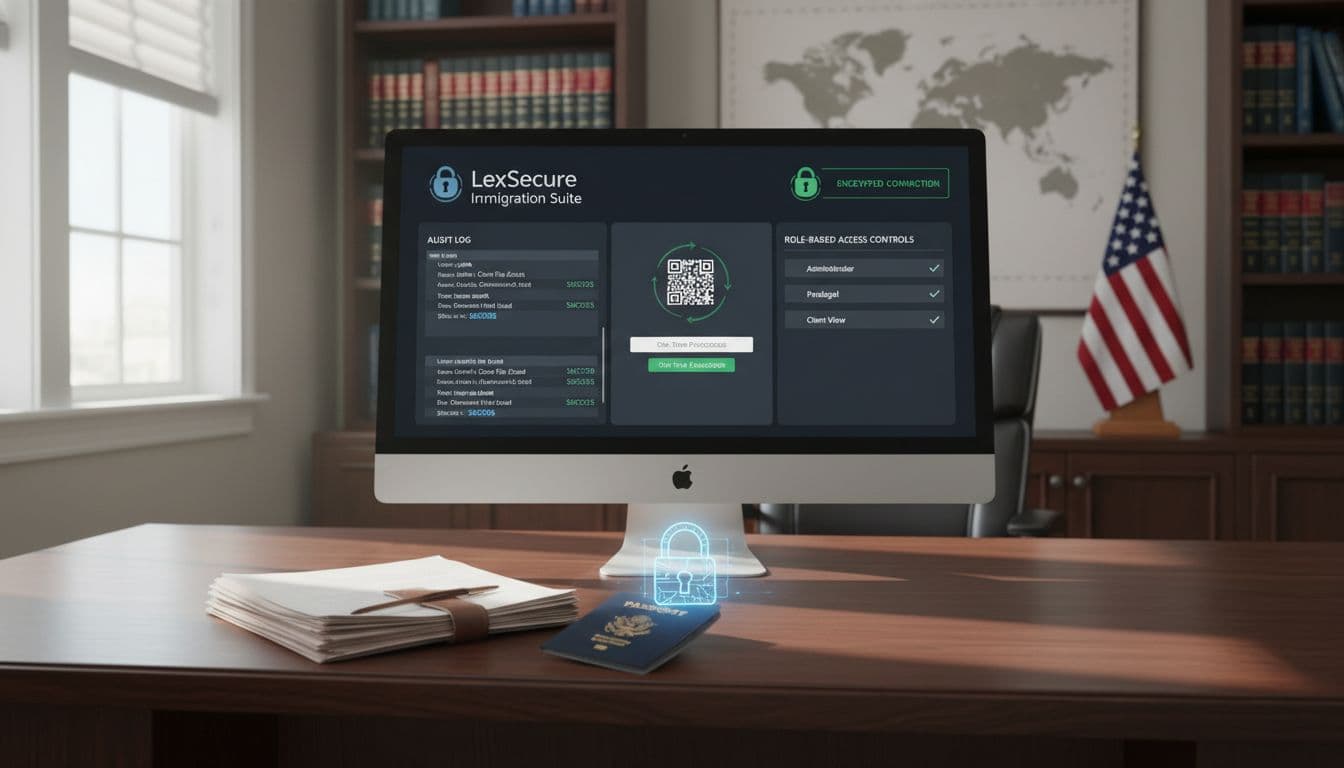
Your non-negotiables: encryption, MFA, audit logs, and access controls
Think of your platform like a courthouse file room. Security is not one lock on the front door. It’s locks on drawers, a sign-in sheet, and clear rules about who gets a key.
Here are the basics in plain language, and why they matter in software for immigration lawyers.
Encryption: Your data is scrambled so it’s unreadable without the right key.
This matters in two places:
- In transit (when data moves between your browser, the app, and clients)
- At rest (when data sits on the vendor’s servers)
If encryption is weak, a stolen file or intercepted connection can become readable. That’s how confidential client data ends up exposed.
MFA (multi-factor authentication): A second check after your password, usually a code from an app or phone prompt.
Passwords get reused, guessed, phished, and leaked. MFA blocks many takeovers even when a password is compromised. For immigration matters, a takeover can mean someone downloads every passport scan you’ve ever collected.
Audit logs: A history of who did what, and when.
A real audit log shows key actions like logins, exports, permission changes, document downloads, and edits. When a client asks, “Who changed my address history?” you need more than a shrug. You need a record.
Access controls (role-based permissions): You decide which staff can see, edit, export, or delete data.
In a busy practice, most risk comes from ordinary mistakes, not bad intent. Strong permissions limit blast radius. Intake staff shouldn’t have admin rights. A contractor shouldn’t be able to export your whole database.
To quickly pressure-test what vendors claim, compare their security pages and feature descriptions, then verify it in writing. A starting point is eimmigration’s overview of security capabilities, which helps you form smarter demo questions.
Practical vendor questions to ask (and get in writing):
- Where is your data stored?
Ask for the country and region. If you serve sensitive clients, also ask if you can choose a data region. - How do backups work?
Ask:- How often backups run
- How long backups are retained
- Whether backups are encrypted
- How fast they can restore after an incident
- How do you handle a breach?
Ask for the incident response process:- How you get notified, and how fast
- What details you receive
- Whether they provide logs, timelines, and impacted records
- How do permissions work for staff?
Ask for a live demo of:- Role templates (attorney, paralegal, intake, billing)
- Matter-level restrictions
- Export and delete controls
- What admins can see and do
- Can you export your data if you leave?
Ask what you can export, in what formats, and how long it takes:- Contacts
- Matters
- Forms data fields
- Notes and messages
- Documents (bulk download) Also ask if exports include an audit history. If not, you may need to preserve logs another way.
Serious disclaimer: This section is general information, not legal advice. You are responsible for protecting client confidentiality and meeting ethics and privacy obligations in your jurisdiction. Confirm security claims directly with the vendor, and document your review.
Client communication rules, document retention, and avoiding risky shortcuts
Software for immigration lawyers should reduce risky communication habits, not hide them. The fastest way to blow a good security setup is letting your team drift back to email threads, personal texting, and “I’ll remember later.”
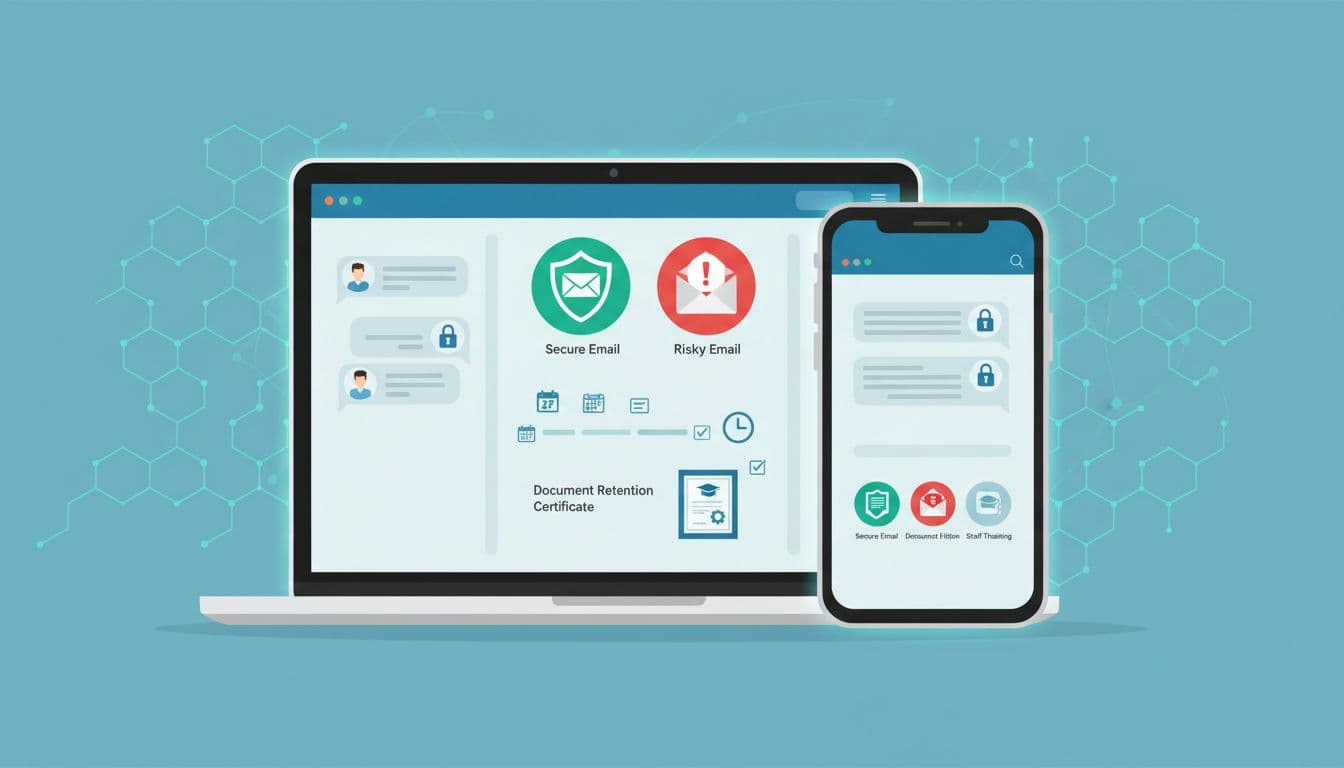
Secure messaging vs email
Email can be fine for basic scheduling, but it’s a weak default for sensitive documents and case facts. Messages can get forwarded, accessed on shared devices, or sent to the wrong address. A secure portal keeps communication tied to the matter, with access controls and a clearer record.
A good rule you can set for your office:
- Use the client portal for documents, identity records, declarations, and case strategy.
- Use email only for low-sensitivity logistics, unless you have a documented reason.
Your ethics duties still apply no matter the channel. The ABA’s guidance on protecting client information is a useful baseline, see ABA Formal Opinion 477R on securing client communications.
Document retention policies (simple, written, followed)
Retention is not just “keep everything forever.” It’s knowing what you keep, where you keep it, and who can dispose of it. Your platform should support retention with permissions, export controls, and clear matter closure steps.
Write a short policy that answers:
- What goes into the official file (and what doesn’t)
- Where the official file lives (portal, DMS, case system)
- How long you keep closed matters
- Who approves deletion, if deletion is allowed at all
- How you preserve evidence of client consent, filings, and key messages
If your client base uses texting heavily, be careful. Texting is where “shadow files” are born. If you allow it, require that messages get captured into the case record quickly, and ban personal phones for client texts unless you have a managed system.
Avoiding risky shortcuts that feel harmless
These are the habits that cause real harm:
- Uploading client passports into a personal drive “just for tonight”
- Forwarding portal messages into email so it’s “easier to track”
- Sharing one login “because it’s faster”
- Letting staff export full contact lists without a reason
- Saving document drafts on desktops without encryption
Treat shortcuts like leaving your office door propped open. Nothing may happen today, but it’s not a plan you can defend later.
Staff training and written procedures (your real compliance engine)
Tools don’t create compliance. Your team does. You want short, repeatable procedures that remove judgment calls for routine work.
Keep written procedures for:
- Intake: what you collect, where it goes, and how you label it
- Identity checks: what you verify (and how you record it)
- Client messaging: who can send what, and which channel to use
- Document handling: naming rules, version rules, and where drafts live
- Escalation: what staff must flag to an attorney right away
Make this easy on yourself. Put it into a one-page SOP per case type and a one-page “communication rules” sheet. Then train new staff on day one and refresh it quarterly.
Audit-proofing tip: Document your process for consistency. Save your vendor security answers, your permission settings, your SOPs, and your training dates. If you ever need to explain your controls to a client, insurer, bar counsel, or auditor, you’ll have a clear record instead of a memory.
Conclusion
Software for immigration lawyers works when it protects your data, reduces form errors, and keeps deadlines visible without extra effort. You get the best results when your platform becomes your single source of truth, from intake to packet build to post-filing tracking, with a client portal your clients will actually use.
- Pick your must-haves for software for immigration lawyers (forms, workflows, portal, MFA, audit logs).
- Shortlist 2 to 3 vendors for software for immigration lawyers (start with Docketwise, INSZoom, and Clio).
- Run demos using your most common case type, then test the client portal on a phone.
- Calculate total cost (seats, onboarding, migration, add-ons), then choose the option that cuts rework, not just the monthly fee.
Downloadable checklist (copy and save):
- Must-haves list approved (forms, tasks, portal, document control, MFA)
- 2 to 3 vendors shortlisted for software for immigration lawyers
- Demo script ready (your top case type, plus 1 problem case)
- Client portal tested on mobile (upload, status, messaging, e-sign if used)
- Written quote received (term, renewals, add-ons, onboarding, migration)
- Security answers confirmed in writing (access controls, logs, breach process, backups), align with your ethics duties (see ABA Formal Opinion 477R)
This is educational content, not legal advice, and you should confirm current product details and your compliance needs before you buy or migrate. Download the checklist, then schedule demos with your top choices.


 Enu
Enu